How PMs & Founders use Claude Code to automate workflows
Turn Claude Code into your personal AI operator. Build structured workspaces that automate workflows for your business / department.
Olesea Moraru
2/26/20263 min read
Claude Code is one of the most powerful tools for PMs and founders. It doesn’t just automate tasks, it enables you to build a true OS for your business or entire departments. When set up correctly, CC can potentially automate up to 60-90% of your daily workload. Here are the specific things you can automate:
Business and Professional Tasks
Reporting and Analysis: You can automate the creation of weekly marketing reports, brainstorm new campaign ideas, and analyze past campaign data to determine future strategies.
Sales and Scoping: the tool can help with writing proposals and defining project scopes.
Education and Content Management: Business owners can use it to manage course materials, making it easier to create new educational content based on existing context.
Outreach: You can automate the process of finding contact information (like extracting emails from YouTube channels) and drafting outreach emails based on specific templates.
Research and Market Intelligence
• Competitor Analysis: You can set up commands to deep-dive into competitors, identifying their positioning, handles, and strategy.
• Market Scans: You can automate scanning the state of the market on a regular basis (e.g., every Sunday) to identify emerging trends and gather data on dozens of competitors at once.
• Lead Research: For podcasters or sales teams, you can automate background research on potential guests or leads, including their interview history and recent activity.
Workflow Automation
Here’s what a “design review” (case study) looks like (in a modern PM workflow)… what before took weeks (sometimes, months) now takes minutes.
You have three files and one command:
research.md — behavioral data, user feedback, analytics findings, session recording insights
prd.md — the product requirements document for the feature or flow you're reviewing
figma.md — links to your current Figma designs, plus any proposals or alternatives from your team
You load these into your workspace. You run a review (either a prompt you’ve crafted or a command you’ve saved for exactly this purpose). The agent reads all three, cross-references them, identifies the gaps, and produces a single output:
design-review.md This document covers:
Where the proposed designs don’t satisfy the PRD requirements
Missing edge cases and states the current designs haven’t addressed
User flow inconsistencies backed by research evidence
Prioritized issues — what matters most and why
And at the bottom: a Figma Make prompt: a copy-paste-ready instruction you drop directly into Figma Make to generate the corrected or missing solution.
One thing to know about Claude Code is priming and context management. You have only a limited number of tokens available to work with; for this reason, it is very important to keep it fully contextualized.
How to set up a custom automation workspace?
You must treat the environment as a hub for a "digital employee" that requires specific tools, context, and a structured folder system to function effectively.
1. Prepare the Environment
a. Install VS Code (or another editor that you already use)
b. Create the Root Folder: Create one main folder on your computer (e.g., "Claude Workspace").
c. Set Up the Folder Structure: Inside your root folder, create the following sub-directories to organize your agent's resources:
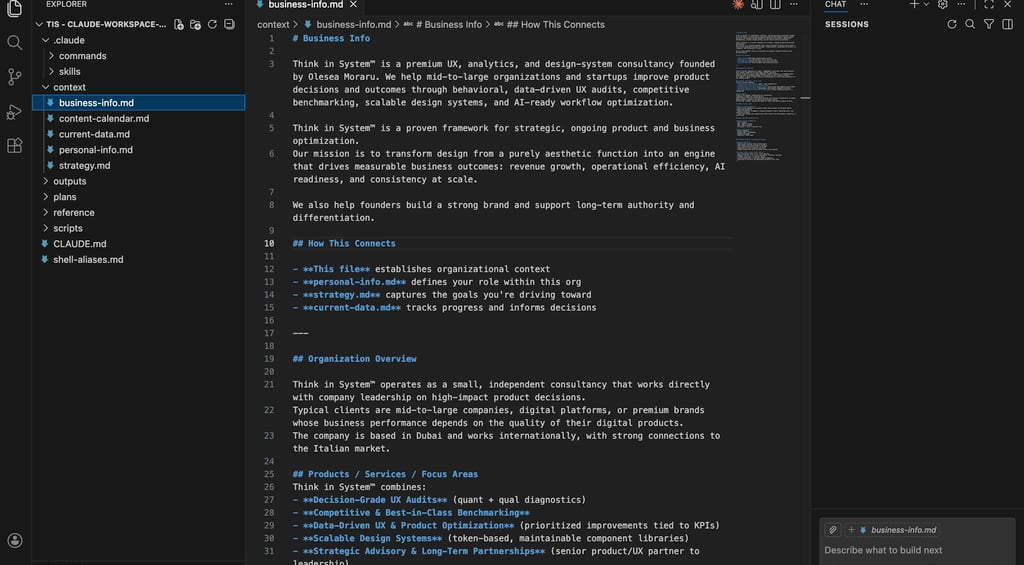
◦ context/: Contains essential information about who you are, your business, and your goals.
◦ commands/: Stores reusable natural-language prompts that define specific workflows.
◦ scripts/: Houses code snippets for fetching external data or performing technical tasks.
◦ skills/: A place for installable plugins or packages that enhance the agent's capabilities.
◦ outputs/: Where the agent will save completed reports or files.
◦ plans/: Stores detailed implementation plans for workspace changes.
◦ reference/: Holds miscellaneous documents like outreach templates or competitor lists.
◦ claude.md: A critical markdown file that describes the entire workspace and its purpose to the AI at the start of every session.
2. Install and Authenticate Claude Code
https://code.claude.com/docs/en/quickstart
3. Implement Context Stacking
The effectiveness of your workspace relies on "context stacking," which involves layering information so the AI has an intelligent base for conversation. You should populate your context/ folder with:
1. Business Context: Your company's goals and values.
2. Personal Info: Your specific role and responsibilities.
3. Strategy: Current quarterly or project-based objectives.
4. Current Data: Real-time analytics or status updates
Starting fresh and providing deep context are the two most critical components of using CC effectively because they ensure the model operates with maximum intelligence.
Why is starting fresh so important?
Token Limits: The latest Claude models have a limit of 200,000 tokens. Every message you send and every response you receive consumes these tokens
Efficiency: By spinning up a fresh session for a new task, you ensure the AI has its full "brain power" available to get the job done right the first time, rather than requiring constant "nudges" or corrections.